LOCAL FILE CHECK
Why Won't My TikTok Video File Transcribe?
Choosing a file is not proof that its audio can be decoded. If browser decoding fails, this tool never sends audio samples to its transcription worker, so no transcript can appear.
Try the TikTok transcript tool
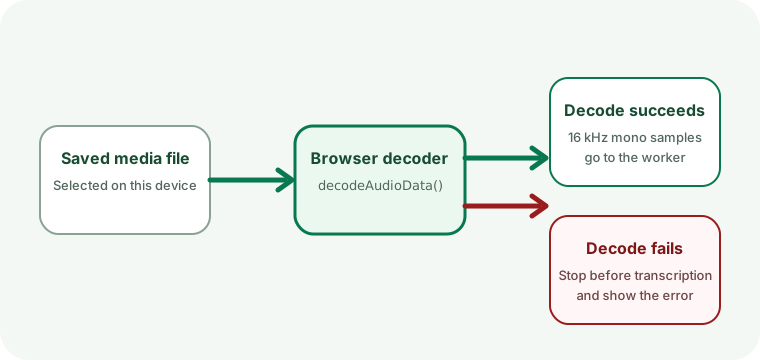
The file picker and the decoder answer different questions
The TikTok transcript page asks the operating system for audio and video files. That filter helps you find likely inputs, but it does not inspect every codec inside each file. The actual test happens later, when the page reads the selected file into memory and asks the browser's audio decoder to open it.
This distinction matters because a filename extension describes a container or naming convention, while the browser still has to understand the encoded audio inside it. Two files with the same extension can therefore behave differently in different browsers or devices. This page does not publish a universal compatibility promise.
Where the current tool stops
A file is selected
The page shows the local filename and file size. No transcript work has started yet.
The browser decodes audio
The page reads the file with arrayBuffer() and passes those bytes to decodeAudioData().
Audio becomes worker input
Only after decoding succeeds does the page render mono audio at 16 kHz and transfer samples to the browser worker.
If the second checkpoint fails, the current code displays the browser error and changes the status to “Transcription could not start.” The failure occurs before model inference, so changing the spoken-language selector does not repair an undecodable file.
What to do with a file that stops at decoding
- Read the error shown under the tool. Do not treat file selection alone as a successful format check.
- Confirm that the saved file plays with audible speech on the same device. A silent or damaged download gives the transcript tool no usable speech input.
- Try the same authorized recording as a common audio file or a standard browser-playable video file. Conversion happens outside this site; the selected replacement is still processed locally when you choose it.
- Start a new run and watch for the status to move from local decoding to the browser worker. That change shows that the browser produced audio samples.
What a successful decode does not prove
Passing the decoder only proves that the browser could produce audio samples. It does not prove that speech is clear, that the selected language is correct, or that the final transcript will be usable. Those checks happen later. Review the returned words against the original recording before copying or publishing them.
File questions
Does an MP4 filename guarantee that this TikTok transcript tool can read it?
No. The browser must support the audio encoding inside that MP4 file. The file picker accepting the filename is not a decode guarantee.
Will changing Auto-detect to English fix a decode error?
No. The language setting is used after audio decoding. A file that fails during decoding never reaches that stage.
Is the failed file uploaded for diagnosis?
No. The current page reads the selected file in your browser. The error is displayed locally; this site does not receive the media file.
For later stages, see what each progress message means. For the selected-file data path, read the browser-local privacy explanation.